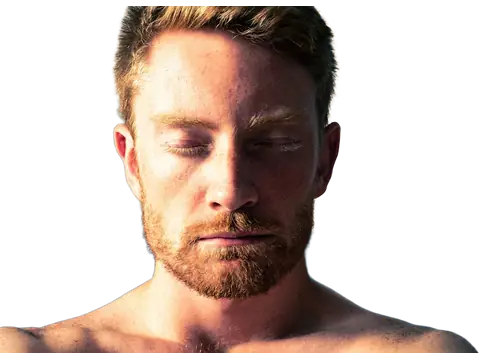
A profile photo is usually seen small. A simple background can make the face easier to recognize without changing the person. Clearcut keeps the original subject pixels separate from the backdrop; it is not a face-retouching or headshot-generation service.
Before you start
Choose a sharp photograph with your face visible and enough space around your head. A relaxed pose, even lighting, and a clear boundary around your hair help. The people showcase uses a casual outdoor photo to demonstrate the cutout, not to promise a studio headshot.
Step by step
- Upload your portrait and wait for the cutout.
- Check hair, glasses, shoulders, and any gaps between an arm and the body. Use Restore for missing subject details and Erase for stray background.
- Choose a plain background color that contrasts gently with your hair and clothing.
- Select a square canvas and adjust the subject’s position. Keep the face near the center and leave enough room for a circular crop in the destination app.
- Download the result, then inspect it at a small size before updating your profile.
Check the result
Many platforms crop square images into circles. Keep important details away from the corners. Fine hair should look plausible, but do not spend all your time on details too small to see in the final profile image.
Keep in mind
A new background does not remove sunglasses, change an expression, or fix harsh facial shadows. If those details matter, another source photo is usually a better starting point.
Next: continue with the related guide.
Ready to try it? Open the Clearcut editor.
Start with your next image.
Create an account and verify your email to get 30 free credits every month: enough for 30 Fast images or 15 Fine images. Use them on the website or through the API.